
Why do I need to install these certificates?
Some Department of Education services require certificates to be installed on your device before they will work correctly.
You will need to install two certificates:
- Department of Education Root Certificate
- Department of Education Intermediate Certificate
Please install the certificates in the order shown below.
⚠️ Important:
If your device is managed by a parent/guardian or another administrator, you may be prompted to enter an administrator password during the installation process. You will need to contact the person who manages your device to complete this step.
Windows 11 – Manual Install
Step 1 – Download the certificate
Download both certificates:
1. Department of Education Root Certificate
[Download Department of Education Root Certificate]
2. Department of Education Intermediate Certificate
[Download Department of Education Intermediate Certificate]
Step 2 – Install the Root Certificate
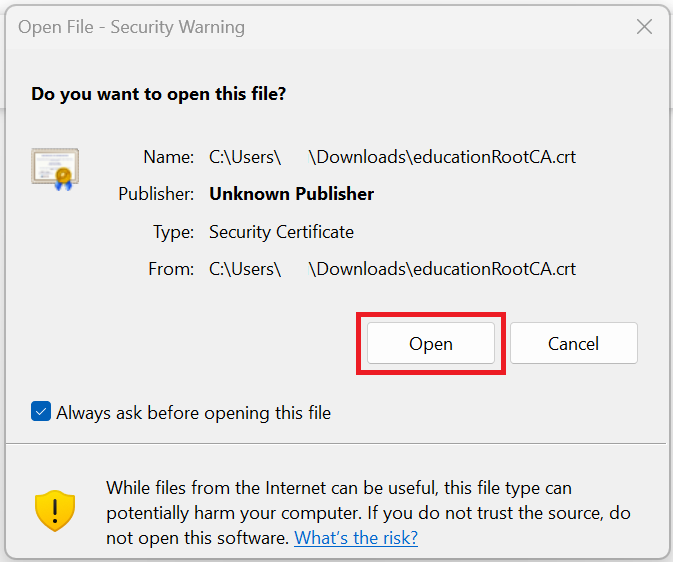
1. Open the downloaded file: Double Click Department of Education Root Certificate
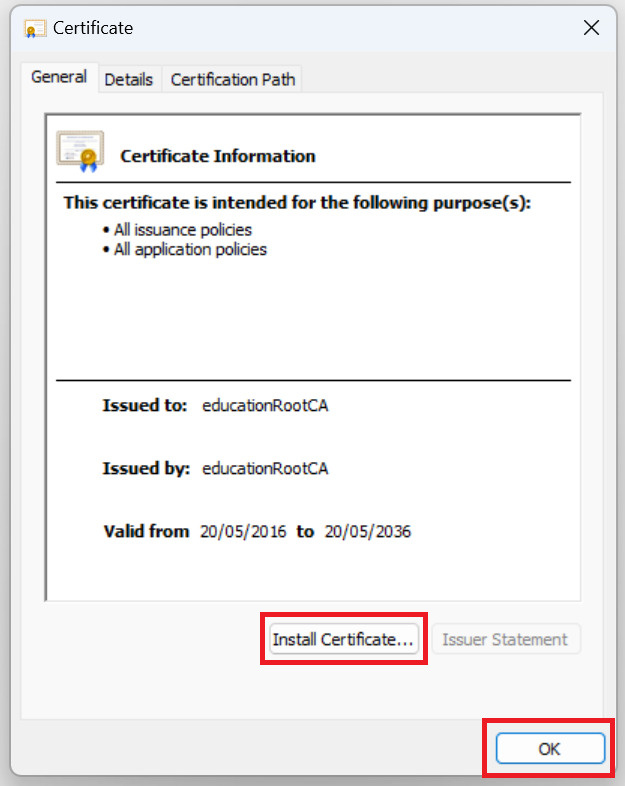
2. A certificate window will open.
Select: Install Certificate (If asked, allow the app to make changes to your device.)
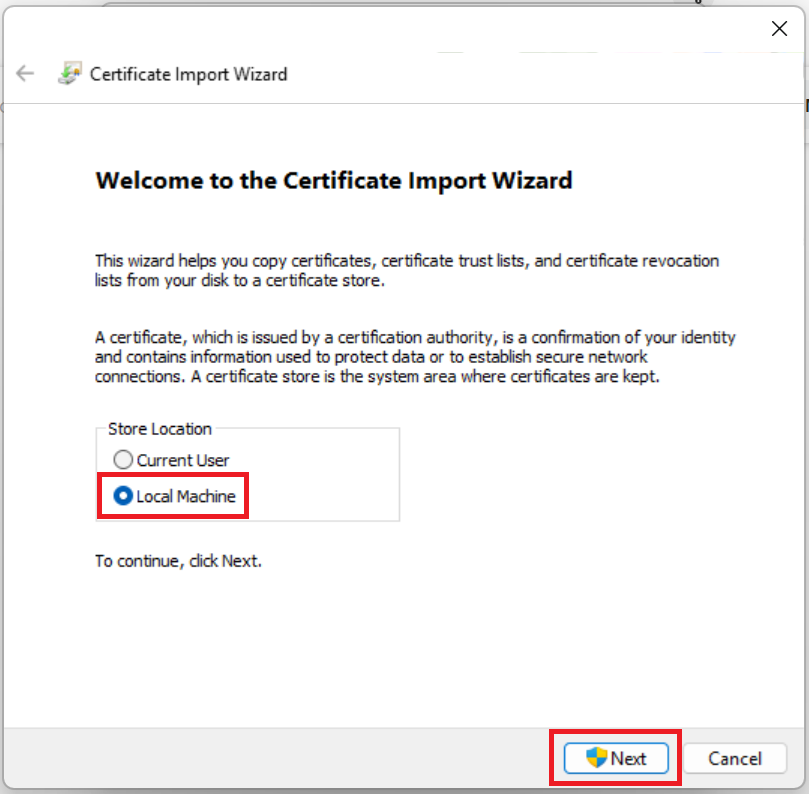
3. Select: Local Machine then click Next
If prompted for an administrator account, enter administrator credentials.
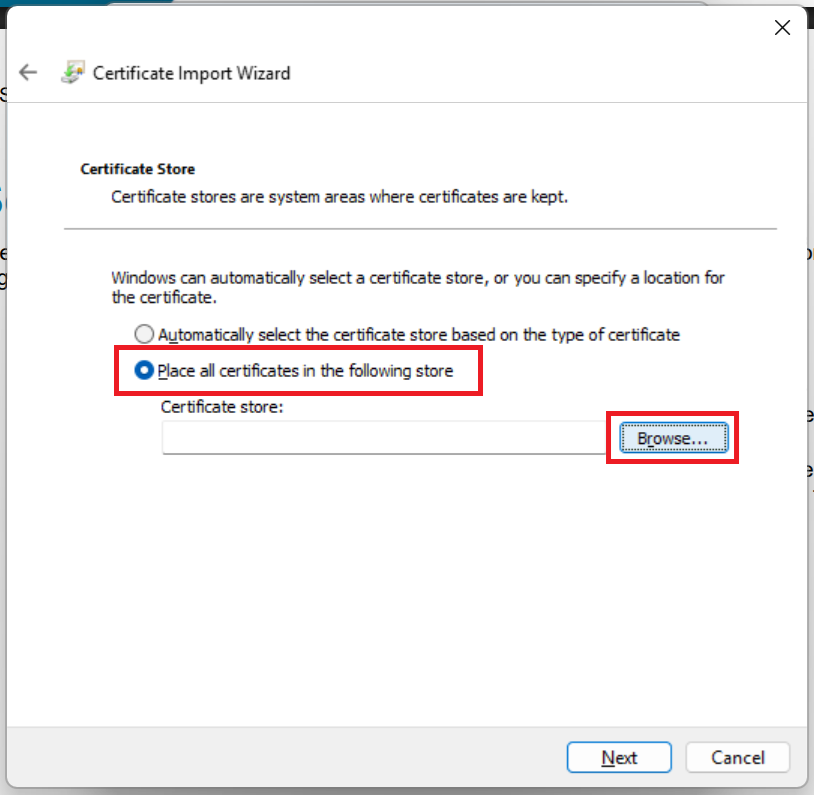
4. Select: Place all certificates in the following store, click Browse…
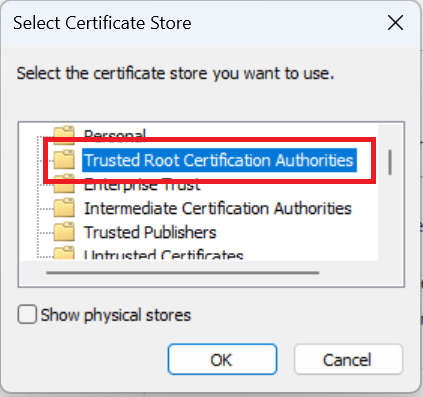
5. Select: Trusted Root Certification Authorities, click OK
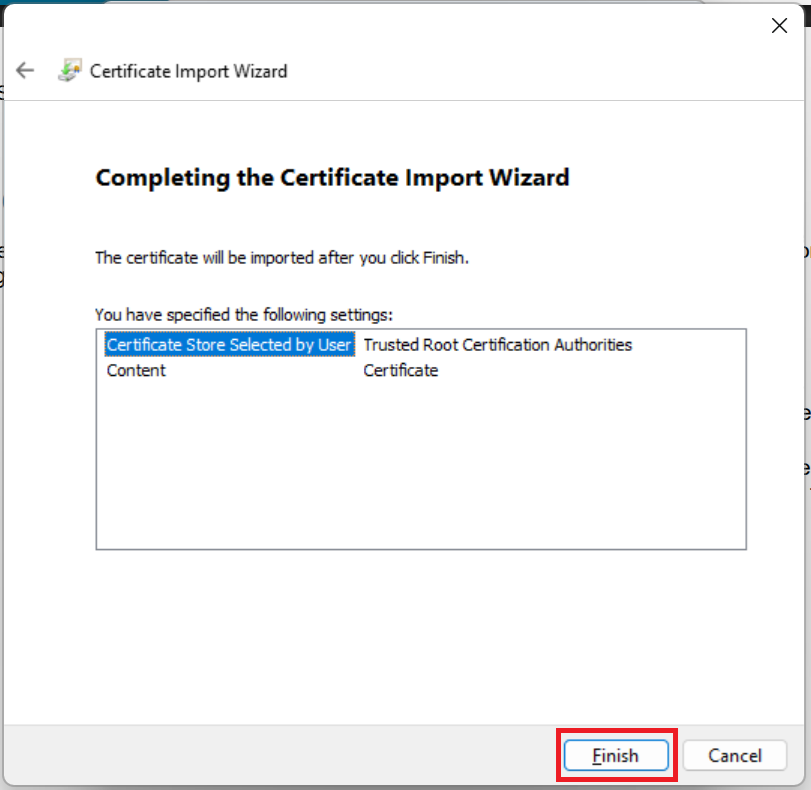
6. Click: Finish
____________________________________________________________________________________________________________________
Step 3 – Install the Intermediate Certificate
1. Open the downloaded file: Double Click Department of Education Intermediate Certificate
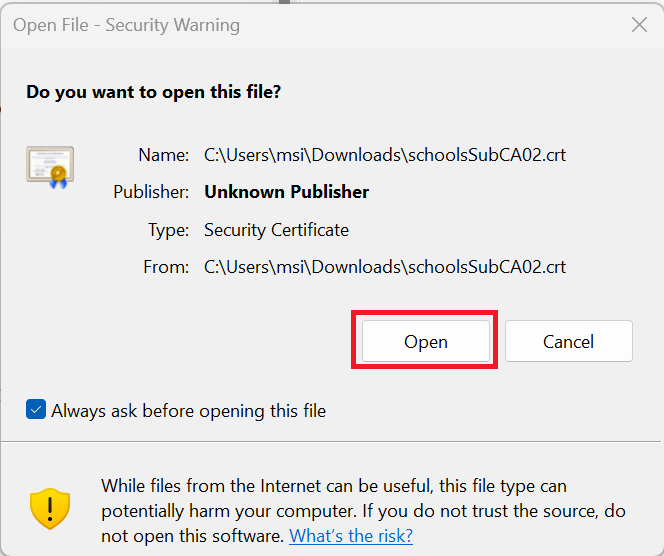
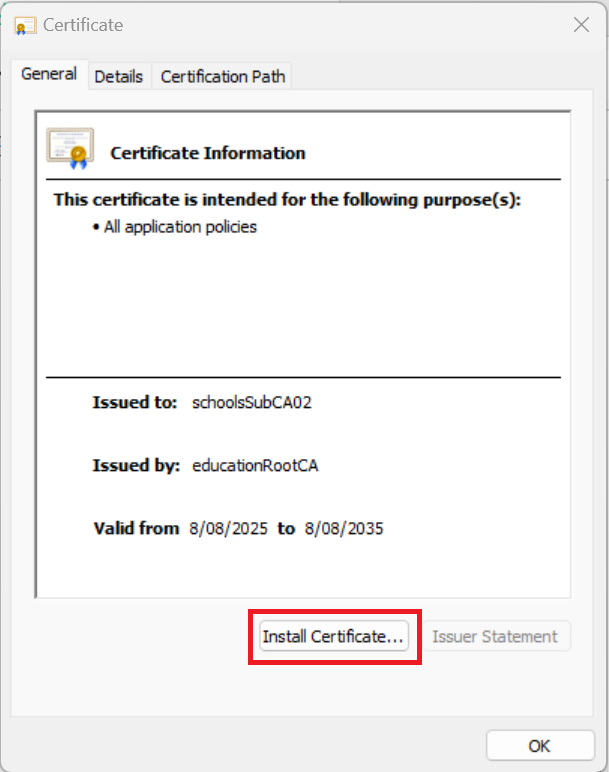
2. A certificate window will open.
Select: Install Certificate (If asked, allow the app to make changes to your device.)
3. Select: Local Machine then click Next
If prompted for an administrator account, enter administrator credentials.
4. Select: Place all certificates in the following store, click Browse…
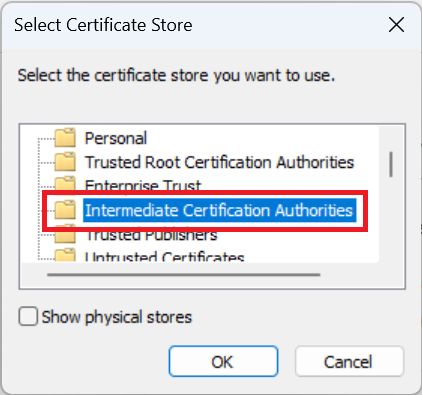
5. Select: Intermediate Certification Authorities, click OK
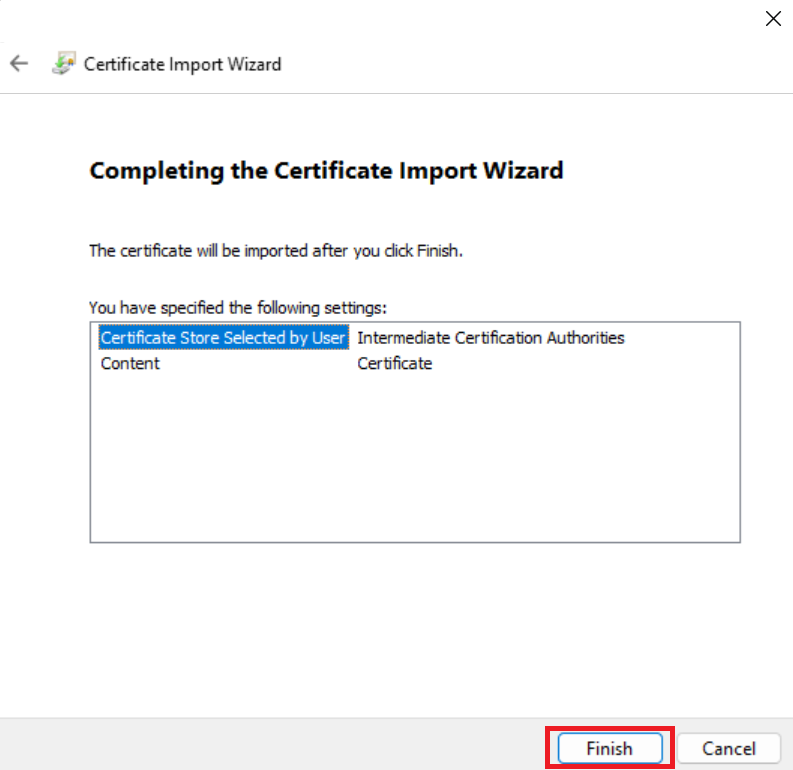
6. Click: Finish
MacOS – Manual Install
Step 1 – Download the certificate
Download both certificates:
1. Department of Education Root Certificate
[Download Department of Education Root Certificate]
2. Department of Education Intermediate Certificate
[Download Department of Education Intermediate Certificate]
Step 2 – Download the certificate
1. Open the downloaded Department of Education Root Certificate file.
2. If prompted, choose Keychain Access to open the certificate.
3. When asked where to add the certificate, select: System (recommended)
4. Click Add.
5. Enter your Mac password (or use Touch ID) if prompted.
Step 3 – Trust the Root Certificate
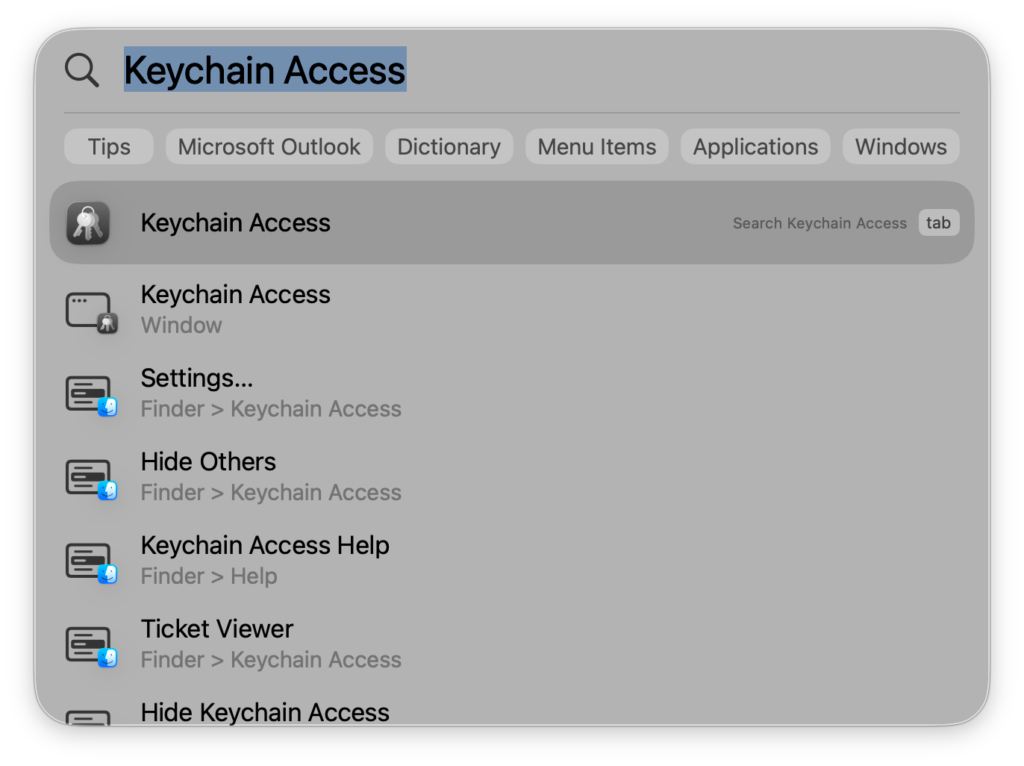
1. Open Keychain Access (if it doesn’t open automatically)
Press Command (⌘) + Space
Search for Keychain Access
Press Enter
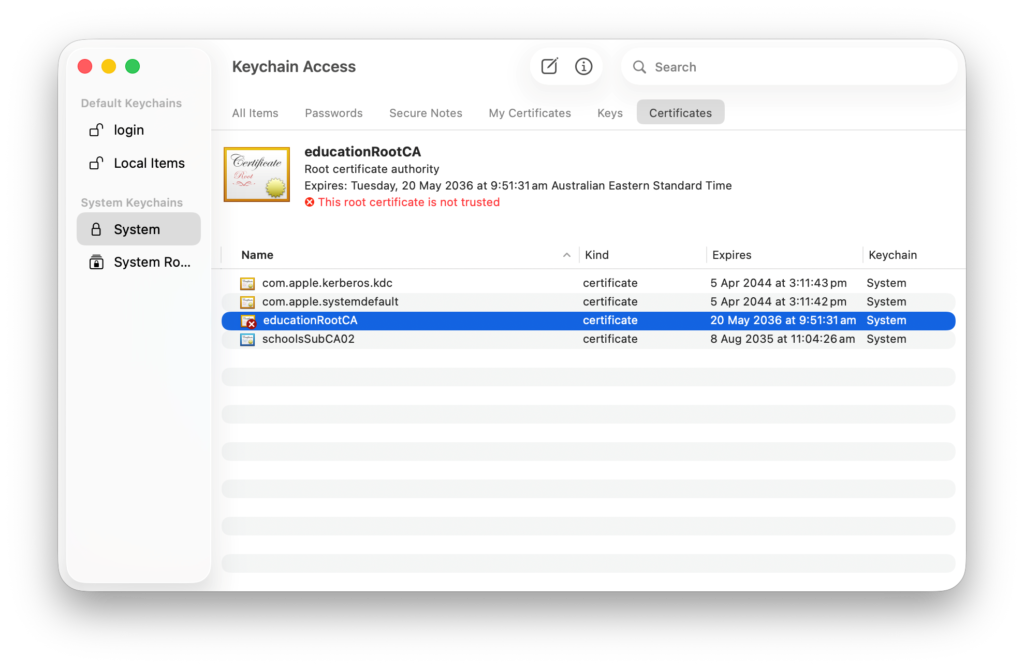
2. In the left-hand menu, select System.
3. Locate and double-click the Department of Education Root Certificate.
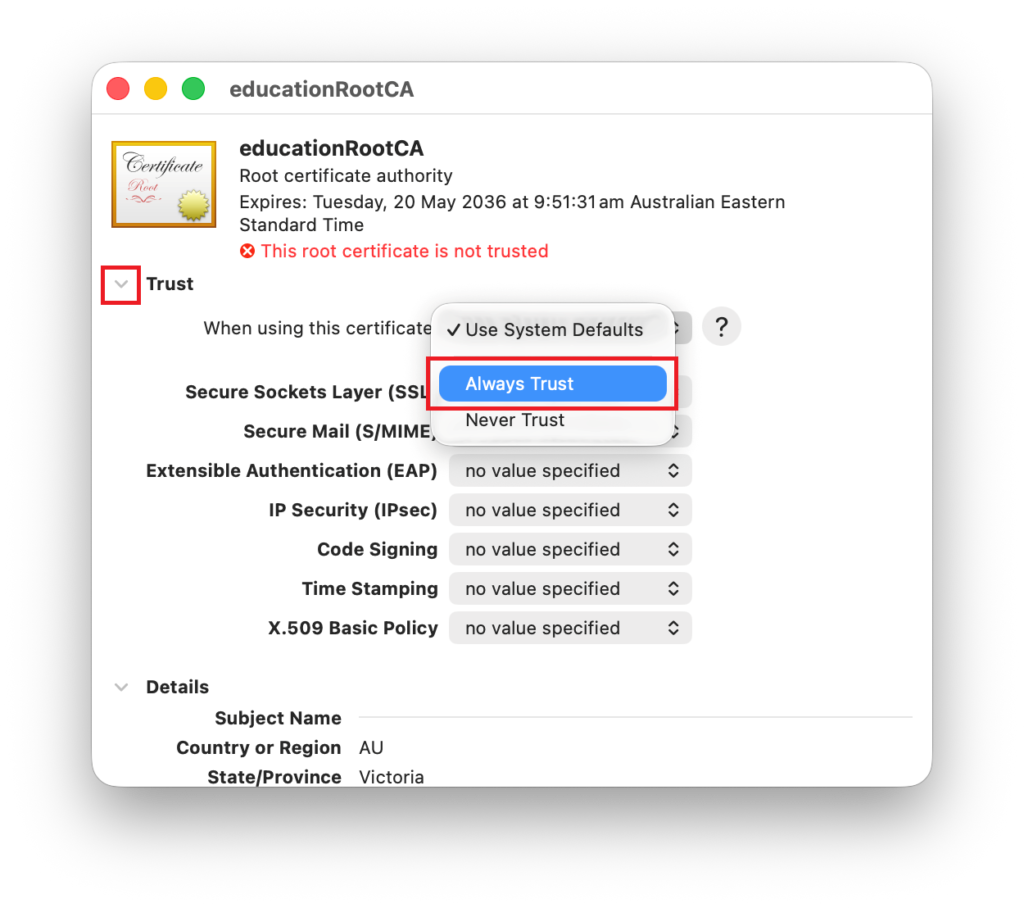
4. Expand the Trust section.
5. Next to When using this certificate, select:
Always Trust
6. Close the certificate window.
7. Enter your Mac password if prompted to save the changes.
Step 4 – Install the Intermediate Certificate
1. Open the downloaded Department of Education Intermediate Certificate file.
2. Choose System when prompted for the keychain.
3. Click Add.
4. Enter your Mac password if prompted.
Step 5 – Restart your browser
After installing both certificates:
1. Close all web browsers.
2. Re-open your browser.
3. Try accessing the required Department of Education service again.
If the service still doesn’t work, restart your Mac and try again.