
Print to any networked printer from your own device — no drivers or software installation required.
❗Important!
You must be connected to the eduStar Wi-Fi and signed in with your college username and password to use Web Print. If you don’t know your login details, contact the IT Help Desk before you start.
Web Print Limitations
- Prints in black & white only
- Booklet printing is not supported.
Before You Start
- Have the document you want to print ready and saved (PDF, Word, Excel, PowerPoint, or image files all work).
- Web Print uses a single virtual queue called FollowMePrint, which can be released at any photocopier around the school.
- Maximum file size is 25MB
How to Submit a Web Print Job
1. Click on the link below to go to the Web Print portal:
Web Print Portal
2. Login using your college username and password
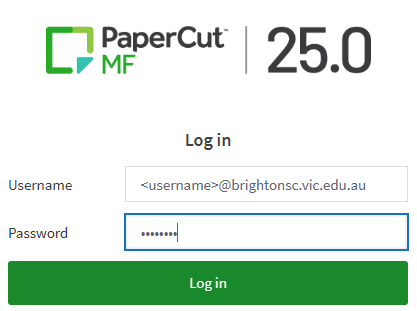
3. Once logged in, click on “Submit a Job“
4. Choose how many copies you want, then click “Upload Document“
5. Click ‘Upload Document’, then browse to and select your file. Click ‘Upload & Complete’.
6. Wait a few moments while your document is processed — this happens automatically in the background.
7. Go to any of the photocopiers. Tap your card or enter your college credentials at the printer to release and collect your job, just like any other print job.
Troubleshooting
- Job stuck on ‘Processing’ — large files (especially PowerPoint or high-resolution images) can take a minute or two to render. Give it a moment before trying again.
- File type not supported — try saving/exporting the document as a PDF and uploading that instead.
- Can’t see your printer in the list — the printer may not be enabled for Web Print.
- Forgot your login — contact the IT Help Desk to reset your password.